.png?width=1322&height=350&name=C3ITXperts-logo-R%20(1).png "C3ITXperts-logo-R (1)")


Last updated on 10th August 2026
A large touchscreen monitor can make a classroom look modern in seconds.
But a screen alone does not make teaching interactive.
The real question is more important:
Will teachers be able to use the display quickly, confidently and meaningfully during a normal lesson?
If the answer is yes, a large touch screen monitor can become a shared canvas for explanations, student participation, collaboration, assessment and revision. If the answer is no, even an expensive display may end up being used only to show videos or slides.
This guide explains what a large touch screen monitor does, how it can support teachers and students, which classroom activities work best, and what school leaders should check before buying an interactive display. It is written for principals, school owners, academic coordinators, IT teams and teachers who want classroom technology to improve the lesson not simply decorate the room.
Quick answer: A classroom-ready large touch screen monitor is usually an interactive flat panel display with touch input, digital whiteboarding, multimedia support, connectivity, speakers and software. Its value comes from the complete teaching workflow around it: preparation, delivery, participation, assessment, saving and follow-up.
What is a large touch screen monitor for a classroom?
A large touch screen monitor is a display that allows a teacher or student to interact directly with digital content using a finger, stylus or other supported input.
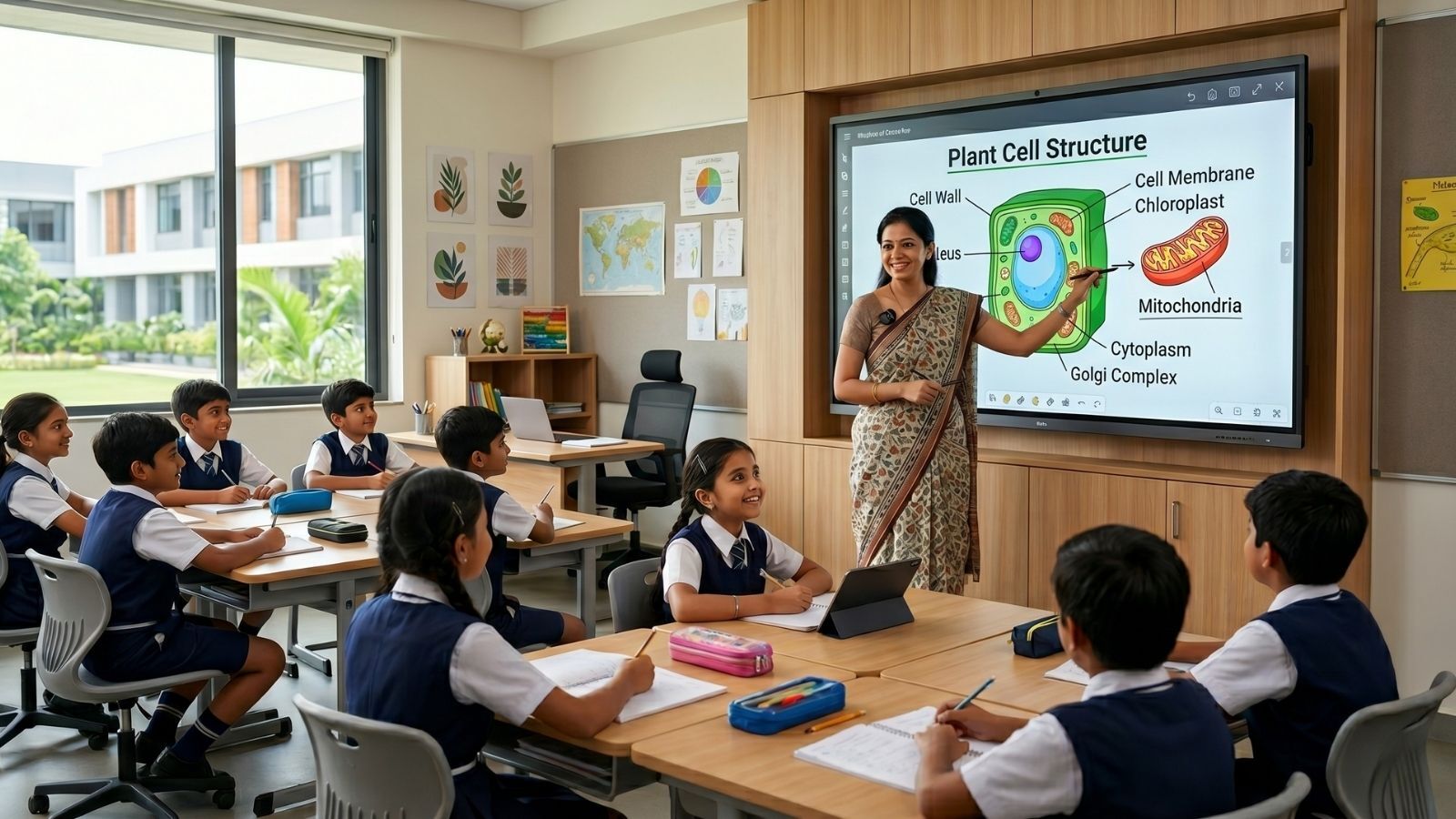
In a classroom, it may be used to display a presentation, open a PDF, write on a digital canvas, annotate a diagram, play a video, access a web resource or invite students to solve a problem on the screen.
The phrase large touch screen monitor can describe several types of equipment.
A standard touch-enabled commercial display may show content and accept input.
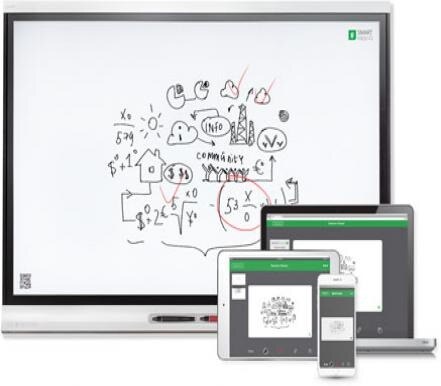
A classroom-ready interactive flat panel usually goes further by combining:
- A high-resolution display
- Multi-touch interaction
- Digital whiteboarding and annotation
- Built-in speakers
- An operating system or access to an external computer
- HDMI, USB, USB-C, network and wireless connections
- Teaching, collaboration or screen-sharing software
- Mounting, installation, warranty and support options
That difference matters. A school is not only buying a bigger screen. It is choosing how teachers will prepare lessons, start classes, explain ideas, involve students and save learning materials.
You can explore C3 iT Xperts’ interactive display solutions for classrooms to see how the display fits into a broader classroom technology system.
7 practical benefits of large touch screen monitors in classrooms
1. More active student participation
Students can do more than look at a screen. They can come forward to solve a problem, label a diagram, arrange steps, draw a response, compare examples or explain their thinking to the class.
This changes the role of the display. It becomes a shared learning surface rather than a one-way presentation screen.
Teachers can also invite different students to contribute in different ways.
One student may write a calculation. Another may identify a pattern.
A third may explain why an answer is correct.
These small moments help the teacher see who is following the lesson and who needs another explanation.
Interactive participation should always have a learning purpose. Touching the screen is not automatically learning. The activity must help students think, explain, practice, create or receive feedback.
2. Clearer explanations of complex ideas
Some concepts are difficult to explain using only spoken words or a static board.
A large touch screen monitor lets teachers combine images, animation, diagrams, handwriting and movement in one explanation.
For example, a science teacher can display a labelled diagram, zoom into one part, add notes and then compare it with a second diagram.
A mathematics teacher can write each step of a solution beside the original problem.
A history teacher can mark locations on a map and connect them to a timeline.
The teacher can move between prepared material and spontaneous explanation.
That flexibility is important because good teaching often changes when students ask questions.
3. Better collaboration and group work
A classroom display can help groups share ideas with everyone. Students can work on a problem in pairs, bring their solution to the screen and discuss different approaches.
Teachers can use the display for:
- Group brainstorming
- Mind maps
- Sorting and classification
- Project planning
- Peer review
- Comparing multiple answers
- Whole-class discussion
The display does not replace notebooks, hands-on materials or group discussion. It gives the class a common space where ideas can be made visible and improved together.
4. Support for different learning needs
Every student does not learn at the same pace or in the same way.
A teacher can use a large touch screen monitor to provide visual examples, spoken explanations, written steps, diagrams and interactive practice within the same lesson.
The teacher can enlarge text, highlight important details, use color to show relationships and revisit a previous step without erasing the entire lesson.
Students who need more time can see the saved explanation again.
Students who are ready for a challenge can work with a more complex example.
This is not a substitute for inclusive teaching or individual support.
It is one practical tool that gives teachers more ways to present and revisit a concept.
5. Faster feedback during a lesson
A teacher does not always need a long test to check understanding.
A quick question, an annotated answer, a short poll, a show-of-hands activity or an exit response can reveal where students are getting stuck.
With the right software and classroom routine, a large touch screen monitor can support formative assessment.
The teacher can display responses, discuss common mistakes and adjust the next activity while the lesson is still happening.
The important point is to connect the feedback to a decision.
Data is useful when it helps the teacher decide what to explain again, which students need support or what task should come next.
6. Easier lesson preparation and reuse
Teachers often prepare the same explanation several times for different sections.
Digital whiteboarding and cloud-based storage can make it easier to save lesson notes, diagrams, worked examples and student contributions.
A teacher may be able to:
- Prepare a lesson before class.
- Open it on the display.
- Add notes during the lesson.
- Save the completed explanation.
- Reuse it for another section or revision activity.
- Share selected resources with students or colleagues.
The exact workflow depends on the display, software and school platform. Before buying, ask vendors to demonstrate the process using real files and real teacher accounts.
7. A more consistent classroom technology experience
If every classroom has a different setup, teachers lose time learning different cables, inputs, logins and software. A planned deployment can create a more predictable experience across rooms.
Consistency helps teachers move between classrooms with less stress. It also helps the IT team document common settings, support users and identify problems more quickly.
However, standardization should not mean buying the same product without checking each room. Classroom size, viewing distance, network coverage, audio needs and teaching use cases still need to be assessed.
How teachers can use a large touch screen monitor by subject
The best activity is not the one with the most digital effects. It is the one that helps students understand, practice or communicate the lesson goal.
- Mathematics: Show each step of a solution, move shapes, plot graphs, compare methods and save worked examples for revision.
- Science: Display diagrams, models and simulations; ask students to label parts, predict outcomes or annotate observations.
- Languages: Annotate vocabulary and sentence structure, rearrange sentences, compare writing styles and improve a paragraph together.
- Social science: Use maps, timelines, photographs and primary sources for analysis, sequencing and discussion.
- Primary classrooms: Use stories, letter formation, number games, matching activities and collaborative drawing with simple instructions.
- Art and design: Demonstrate a process, compare drafts and let students present the decisions behind their work.
What should schools check before buying?
1. Choose the size from the room, not the brochure
The right size depends on room dimensions, seating layout, student numbers, viewing distance, and the type of content teachers display.
The last row should be able to read normal lesson text, not only large headings.
A smaller panel may work well in a compact classroom or small-group room.
A larger panel may be more suitable for a wider room or a class with students seated farther away.
Do not assume the largest display is automatically the best choice.
2. Test the touch and writing experience
Ask teachers to write, erase, move objects, zoom, switch between applications and save an annotation.
Check whether the writing feels natural and whether the display responds quickly enough for live teaching.
A product demo should include teachers who are confident with technology and teachers who are not. The second group often reveals the usability issues that a polished demonstration hides.
3. Confirm the software workflow
Ask how teachers will:
- Open lesson files
- Create and save whiteboard work
- Reopen previous lessons
- Share content
- Use Google Workspace or Microsoft tools
- Access subject applications
- Work when the internet is unavailable
- Move content if the school changes hardware later
A panel may have impressive features but still create extra work if the software does not match the school’s workflow.
For a broader view of the technology needed around an interactive panel, read What Technology Does a Smart Classroom Actually Need?.
4. Review computing and connectivity needs
Some schools can work mainly with the panel’s built-in system. Others need a Windows or Chrome computer, a teacher laptop, an OPS module or another device for specialist applications.
Check the available HDMI, USB, USB-C, network and wireless connections. Confirm whether the classroom has reliable Wi-Fi, suitable cabling, stable power and safe cable routes. A fast panel cannot compensate for a network that fails during every lesson.
5. Plan the audio
Built-in speakers may be enough for some classrooms. Larger rooms, noisy environments, hybrid teaching and lesson recording may need additional speakers, a microphone or a more complete audio system.
The aim is clear, even sound-not simply high volume. Students at the back should hear the teacher and video content without disturbing nearby classrooms.
6. Ask about installation, warranty and support
A quotation should make it clear whether it includes mounting, installation, commissioning, cabling, software licenses, training, warranty and post-installation support.
Ask what happens if a display fails during term time. Confirm response times, spare-parts availability, escalation contacts and the support process for multiple classrooms.
For a current discussion of panel costs and what may or may not be included in a school quotation, see C3 iT Xperts’ interactive flat panel price guide for schools in India.
7. Include teacher enablement from the beginning
A short installation demonstration teaches buttons. It does not automatically create confident classroom use.
Teachers need time to practice the workflows they will use every day: starting a lesson, finding content, annotating, switching activities, saving work and recovering when something goes wrong.
A useful implementation plan can include a core teacher group, peer support, short follow-up sessions and low-pressure classroom observations. C3 iT Xperts’ 90-day smart classroom stabilisation plan explains why daily routines matter more than a single launch-day training session.
Large touch screen monitor, projector or television: what is the difference?
A television or commercial monitor is mainly designed to display content.
A projector can provide a large image and may be suitable for halls, auditoriums or budget-sensitive spaces.
An interactive flat panel combines a display with touch input, whiteboarding and classroom software.
The correct choice depends on the use case.
A school does not need to replace every projector immediately. Instead, compare:
- Visibility in the room
- Touch and annotation needs
- Maintenance requirements
- Installation requirements
- Audio and connectivity
- Total cost over the expected life
- Teacher confidence and daily usability
The best technology is the one that supports the teaching workflow at a sustainable cost.
6 common mistakes schools make
1: Buying the lowest quotation
A low price may exclude installation, OPS, software, training, warranty extensions, electrical work or support. Compare quotations line by line rather than comparing only the final number.
2: Treating the display as the whole smart classroom
A display is one part of a system. Teacher readiness, network quality, cloud storage, lesson workflow, student participation and support determine whether the investment creates value.
3: Demonstrating only with a digital champion
A confident teacher can make almost any system look easy. Test with a mixed group, including teachers who need more support. Their experience is essential to a realistic decision.
4: Buying features without a classroom use case
More touch points, more storage or an AI label do not automatically improve learning. For every feature, ask: How will a teacher use this in a real lesson?
5: Ignoring the first 90 seconds of class
If teachers spend the start of every period finding files, choosing inputs or waiting for the display, technology is taking away teaching time. A simple, predictable start routine should be a core success measure.
6: Stopping support after installation
Adoption changes over time. Teachers move between classes, software changes and small problems accumulate. Schools need a way to collect feedback, provide refreshers and review classroom usage.
School leaders can use this principal’s smart classroom technology adoption checklist to observe whether the system is helping teaching or slowly becoming a source of friction.
A simple two week proof of concept plan
Before a large purchase, ask for a real classroom proof of concept.
1: Set up and practice
Install the display in a real classroom.
Train a mixed group of teachers.
Ask them to use their own presentations, PDFs, videos, lesson files and subject applications.
2: Teach normal lessons
Use the display in different subjects and grade levels. Record:
- Time required to start class
- Ease of finding lesson files
- Touch and annotation quality
- Student participation
- Switching and saving workflow
- Number of technical interruptions
- Support response time
- Teacher confidence
- What became easier
- What created extra work
At the end, ask each teacher one direct question:
Would you choose to use this display during a normal lesson when nobody from the vendor is in the room?
Why or why not?
The answer will tell the school more than a polished product presentation.
How C3 iT Xperts helps schools make the decision
C3 iT Xperts approaches classroom technology as a connected teaching system, helping schools consider goals, teacher workflows, infrastructure, implementation and support together. The goal is not to recommend the screen with the longest feature list; it is to help schools choose technology teachers can use confidently and students can experience actively.
If you are comparing proposals, start with a classroom technology and interactive learning consultation. Ask for help reviewing room fit, software workflow, installation, teacher readiness, support and long-term adoption before approving a large rollout.
Final takeaway
A large touch screen monitor can help make lessons more visual, collaborative and responsive. But the display is only the starting point.
The strongest classroom implementations connect five things:
- A display that fits the room.
- Software that fits the teacher’s workflow.
- Infrastructure that works reliably.
- Training that continues after installation.
- Leadership review that measures teaching use, not just device uptime.
Before choosing a product, ask a better question than “Which panel has the best specifications?
Ask:
Can an ordinary teacher walk into an ordinary classroom, start teaching quickly and use the display to help students think, participate and learn?
If the answer is yes, the large touch screen monitor can become a valuable part of the classroom. If the answer is no, the school may be buying a screen without buying the system that makes it useful.
Frequently asked questions
Is a large touch screen monitor the same as an interactive flat panel?
Not always. The terms are sometimes used interchangeably, but an interactive flat panel normally describes a classroom-ready display with touch input, annotation, speakers, connectivity and software. A large touch screen monitor may offer only some of those capabilities. Check the complete specification and workflow before buying.
How does a large touch screen monitor improve teaching?
It can help teachers combine writing, images, video, diagrams, web content, student responses and saved explanations in one lesson. The impact depends on how well the technology fits the teacher’s routine and learning goal.
What size interactive display is best for a classroom?
There is no single answer. Consider room length, seating arrangement, student numbers, viewing distance and the type of content displayed. The correct size is the one that allows students in the last row to read normal lesson content comfortably.
Do teachers need special training to use a touch screen monitor?
Teachers need basic product training, but daily adoption also requires practice with lesson workflows. They should learn how to start a class, open content, annotate, involve students, save work and recover from common problems.
Can an interactive display work without the internet?
Some functions may work offline, depending on the model and software. However, cloud files, web resources, updates, screen sharing and many assessment tools may depend on reliable connectivity. Ask the vendor to demonstrate both connected and offline workflows.
Should a school buy a large touch screen monitor or a projector?
Compare the room, teaching method, maintenance, visibility, touch requirements, installation and total cost. Interactive displays can be useful for normal classrooms, while projectors may remain practical for very large spaces or situations where touch interaction is not required.
How can C3 iT Xperts help with classroom displays?
C3 iT Xperts can help schools review classroom technology needs, compare solutions, assess infrastructure, plan implementation and support teacher adoption. Schools should discuss their room types, existing technology, goals and rollout plan before requesting a recommendation.
About the Author

Manoj Sundaram
Founder @ C3 iT Xperts
I help K–12 leaders turn "dusty" classroom tech into a daily teaching habit. 18 years and 11,000 classrooms have taught me that the best tech is the tech that "disappears" into the teaching rhythm.
18+
Years Experience
11k+
Classrooms
50k+
Educators Impacted
- interactive flat panel,
- large touch screen monitor,
- large touch screen display,
- touch screen technologies,
- Education,
- Smart Classrooms