.png?width=1322&height=350&name=C3ITXperts-logo-R%20(1).png "C3ITXperts-logo-R (1)")


Updated August 14th 2026
When a school decides to build a smart classroom, the first question is often:
What should we install so people can see that this is a smart classroom?
The usual answer is an interactive flat panel.
It is large.
It is bright.
Students notice it.
Parents see it during a school tour.
But a panel alone does not prove that a classroom is smart.
It proves that the room has a digital display.
A smart classroom is different.It connects:
- Lesson planning
- Classroom teaching
- Student participation
- Assessment
- Feedback
- Learning improvement
A digital classroom has technology.
A smart classroom has a teaching system.
This guide explains what that system needs and how schools can build it without wasting money on equipment teachers do not use.
The Short Answer
A smart classroom needs more than a screen.
The complete system should include:
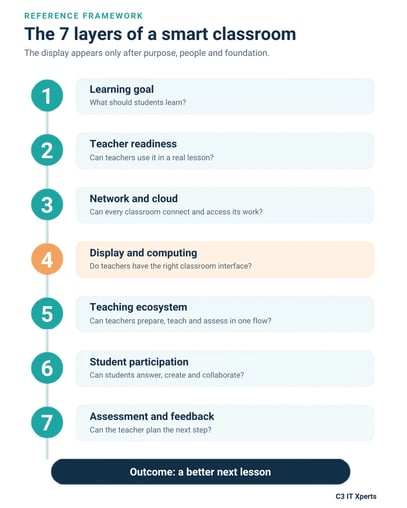
- A clear learning purpose
- Teacher readiness
- Reliable internet and Wi-Fi
- A school-managed cloud
- A suitable display
- A teacher device or OPS computer
- Teaching and assessment tools
- Student participation
- IT management and support
- A phased implementation plan
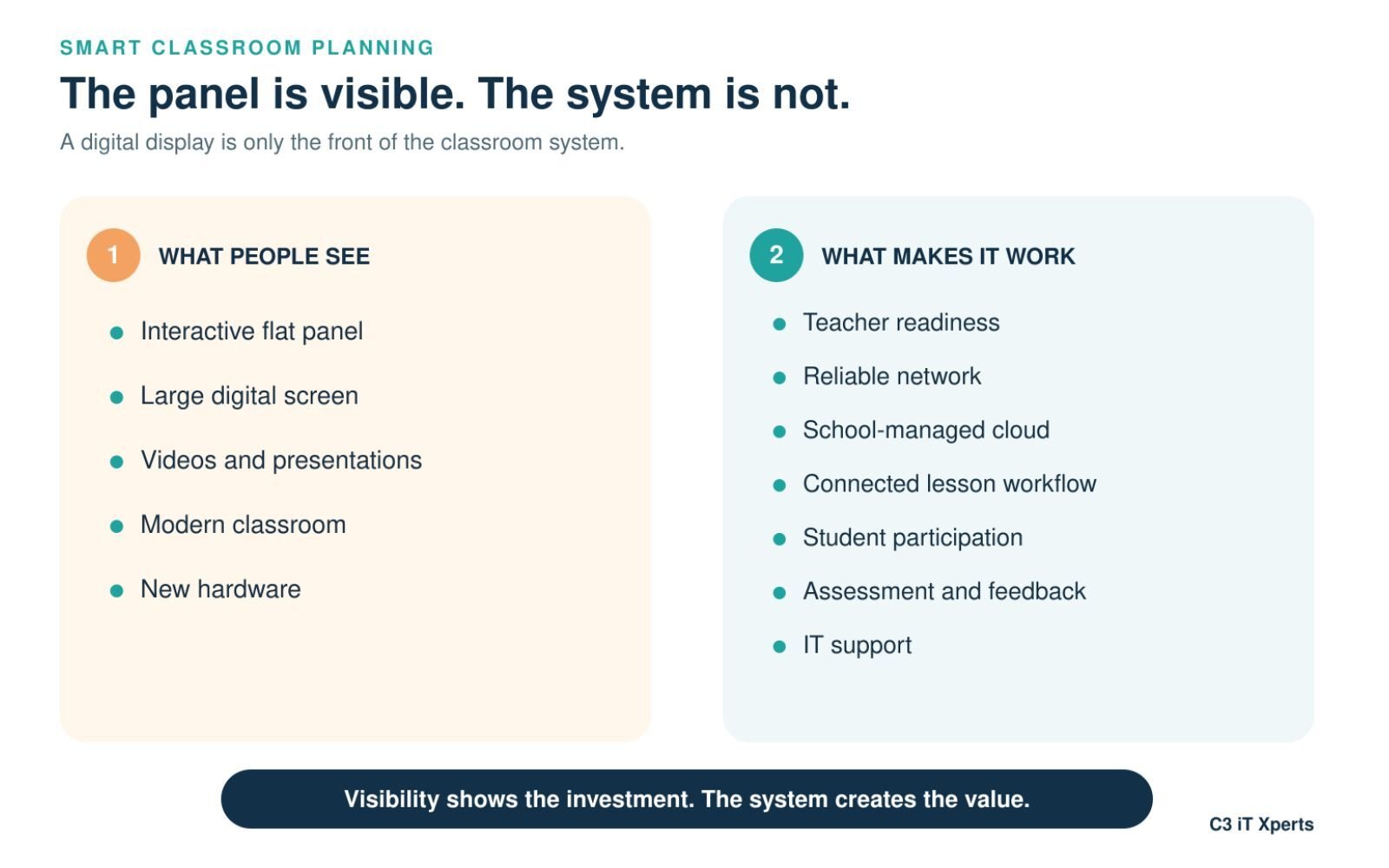
The interactive panel is visible.
The network, cloud, training, and support are less visible.
But those invisible parts decide whether the technology improves teaching or becomes an expensive screen on the wall.
Digital Classroom or Smart Classroom?
A digital classroom uses technology to show content. A teacher may open a PDF, play a video, or display a presentation.
A smart classroom connects the content to a learning goal. The teacher asks a question, students respond, the teacher checks understanding, and the next activity changes when needed.
A digital lesson may end when the video ends. A smart lesson uses the video, student responses, group work, assessment, and feedback to guide what happens next.
The goal is better teaching decisions.
Start With the Learning Goal
Before asking which panel to buy, ask:
- What should change in teaching?
- What should change for students?
- Which classroom problem are we trying to solve?
- How will we know the technology helped?
A school may want to:
- Improve student participation
- Reduce lesson setup time
- Support visual explanations
- Help absent students review lessons
- Improve formative assessment
- Support hybrid learning
- Share resources between teachers
The answer will affect the technology choice.
A school focused on simple lesson delivery may need a reliable display, teacher device, cloud storage, and training.
A school focused on hybrid teaching may need cameras, microphones, audio, stronger network capacity, and support for online meetings.
A school focused on student collaboration may need shared devices, assessment tools, and classroom management systems.
There is no single smart classroom package for every school.
Layer 1: Teacher Readiness
Teacher readiness is often ignored.
A school selects the product first and informs teachers later.
Teachers receive a short training session. Then leadership expects regular use.
That is a product handover, not an adoption plan.
How to check teacher readiness
Speak with different groups:
- Teachers who are confident with technology
- Teachers who use some digital tools
- Teachers who are not comfortable with technology
Each group will have different concerns.
Confident teachers may want more flexibility.
Teachers in the middle may need a clear workflow.
Teachers who are less comfortable may fear making mistakes in front of students.
All three views matter.
The goal is not to judge teachers.
The goal is to understand what will help them use the system.
Ask teachers simple questions
- How do you plan lessons now?
- Where do you find resources?
- What takes too much time?
- What causes problems during class?
- Which tools do you already use?
- What support would help?
- What worries you about the new system?
Also observe real classrooms.
Does technology save time or interrupt the lesson?
Do students take part or only watch?
Can the teacher save and reuse the work?
The school must understand today’s workflow before changing it.
Layer 2: Network and Wi-Fi
A school may say, “We already have internet.”
That does not always mean the classrooms are ready.
The office may have strong internet while the back classroom has weak Wi-Fi.
The school may pay for a fast connection, but old cables, switches, or access points may limit the speed.
Many devices may be connected to one access point.
There may be no backup connection.
The network may exist, but it may not support daily teaching.
Check the network inside the classrooms
Review:
- Internet speed
- Wi-Fi coverage
- Network cabling
- Switch capacity
- Access-point location
- Number of users per access point
- Network security
- Backup internet
- How bandwidth is shared
Do not test only near the server room.
Test during a normal school day when teachers and students are using the network.
A test in an empty school can produce a result that does not match Monday morning.
Why the network matters
A smart classroom may use:
- Cloud lesson files
- Videos
- Websites
- Online assessment
- Student devices
- Screen sharing
- Learning platforms
- Software updates
If the network fails, the teacher is often blamed first.
The real problem may be infrastructure.

Layer 3: A School-Managed Cloud
A smart classroom creates a large amount of digital work.
Teachers create lesson plans, presentations, worksheets, assessments, feedback, and student activities.
Where will those files live?
In some schools, one teacher uses a personal Google Drive.
Another uses OneDrive.
Someone else stores work on a pen drive.
Another sends files to a personal messaging account.
The work is digital, but the school does not own or manage it.
That creates risk.
The school may lose access when a teacher leaves.
Another teacher may not find the previous lesson.
Student data may be stored in personal accounts.
A managed school cloud gives the institution one place to:
- Store lesson resources
- Share approved material
- Control access
- Protect student information
- Reuse successful lessons
- Retain files when staff leave
The school may use Google Workspace for Education, Microsoft 365 Education, or another approved platform.
The platform matters less than the plan.
Decide:
- Who creates accounts?
- Who owns lesson files?
- How are folders named?
- Who can view or edit content?
- What happens when a teacher leaves?
- How is student data protected?
A school-managed cloud turns many personal digital islands into one shared learning system.
Layer 4: Teacher Computing
Most interactive flat panels include Android.
That may be enough for:
- Whiteboarding
- Web browsing
- Video playback
- Simple applications
- Basic file viewing
But Android does not always provide the full desktop experience.
Some school applications need Windows.
Some workflows need a complete browser.
Some teachers may already work with desktop files and specialist tools.
The school has two common choices.
Option 1: A device for every teacher
A laptop or Chromebook allows teachers to prepare anywhere.
They can work in the staff room, classroom, or home and bring the same device to the panel.
Schools using cloud tools may consider managed Chromebooks.
Schools using desktop software may need Windows devices.
Compare the full cost, including:
- Device life
- Updates
- Management license
- Repairs
- Battery replacement
- Software
- IT support
Option 2: An OPS computer inside the panel
An OPS is a computer that fits into the panel.
It can give the teacher a full computer experience without a separate laptop and cable.
An OPS may be useful for:
- Desktop teaching software
- Simulation tools
- Specialist subject applications
- Existing Windows workflows
- Full browser features
Do not add an OPS just because it appears on a quotation.
Choose it because teachers need the applications that will run on it.
Layer 5: The Classroom Display
The display is important, but it is one part of the complete system.
The right size depends on room depth, class size, seating, viewing distance, and the type of content shown.
|
Classroom type |
Typical class |
Starting point |
|
Small classroom |
Up to 25 students |
65-inch panel |
|
Standard classroom |
Around 40 students |
75-inch panel |
|
Large classroom or hall |
50–75 students |
86–98-inch panel |
These figures are only starting points.
Test the panel from the last row.
Students should be able to read normal lesson text, equations, maps, and diagrams.
Useful connections
A normal classroom may need:
- HDMI inputs
- USB data ports
- Full-function USB-C
- Network connection
- Built-in Wi-Fi
- Front-access ports
- Wireless sharing
Ports at the back may be difficult to reach after wall mounting.
Test the connections before approving the purchase.
Do not select a panel only because the brochure lists a large number of ports or touch points.
Layer 6: Sound, Camera, and Microphone
For a classroom of 25-40 students, built-in speakers may be enough if the sound is clear.
A large room may need separate speakers or a teacher microphone.
The goal is not maximum volume.
The goal is even, comfortable sound.
A camera may be useful for:
- Hybrid classes
- Recorded lessons
- Remote guest teaching
- Absent students joining a lesson
- Teacher reflection
Before buying a camera, define the use.
A small camera on the panel may show the room, but it may not capture the teacher and lesson clearly.
For recording, focus on three things:
- The teacher
- The lesson content
- Clear teacher audio
Do not add cameras and microphones only because they come with a premium package.
Layer 7: Teaching and Assessment Tools
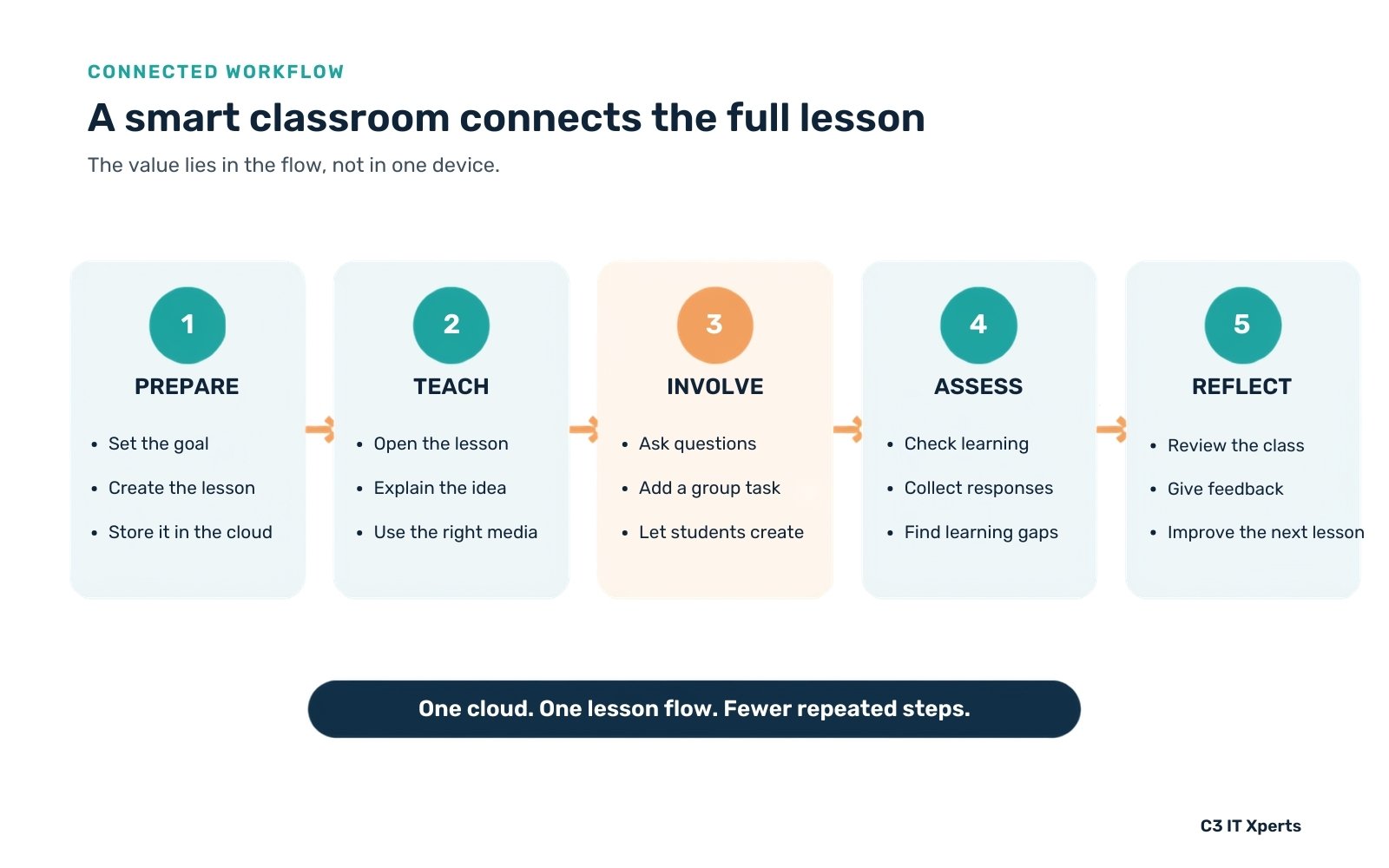
A smart classroom should help the teacher move through a complete cycle:
Prepare → Teach → Collaborate → Assess → Reflect
The teacher should be able to:
- Prepare the lesson.
- Save it to the school cloud.
- Open it in class.
- Explain and demonstrate.
- Let students participate.
- Check understanding.
- Save the classwork.
- Review the results.
- Improve the next lesson.
Some schools buy many separate apps.
One app handles presentations. Another handles quizzes. Another stores files.
Another creates reports.
Each app may work on its own.
The workflow may still be difficult.
Teachers may need too many passwords.
Files may need to be moved manually.
Results may be stored in different places.
Ask vendors:
- Do the tools work together?
- Can the system connect to the school cloud?
- Can teachers reuse existing lesson files?
- Can assessment results be saved?
- Can content move to another system later?
- Does the workflow reduce teacher work?
The best system is not the one with the most apps.
It is the one teachers can use without extra steps.
Layer 8: Student Participation
A display gives technology to the teacher.
What does it give the student?
If students only watch a video or presentation, the school has improved content delivery.
It has not yet created a fully interactive classroom.
Students need ways to:
- Answer
- Create
- Discuss
- Share
- Collaborate
- Complete assessments
- Receive feedback
- Show what they understood
Every student does not need a personal device on day one.
Start with one school-owned device for a group of three or four students.
Teach students how to share, take turns, store work, and protect their accounts.
Build the learning routine first.
Then expand device access.
Layer 9: IT Management and Support
The IT team is not only responsible for repairing broken equipment.
It also helps the school create a reliable classroom system.
Before installation, IT should review:
- Network readiness
- Cabling
- Accounts
- Software
- Security
- Device management
- Installation needs
After installation, teachers need:
- Working accounts
- Stable connectivity
- Approved applications
- Updated systems
- Fast support
- A clear backup plan
Central device management can help IT teams:
- Approve applications
- Block unsafe applications
- Lock key settings
- Schedule updates
- Check device health
- Provide remote support
- Protect school data
If a school has 50 classrooms, it needs one managed system—not 50 separate technology problems.
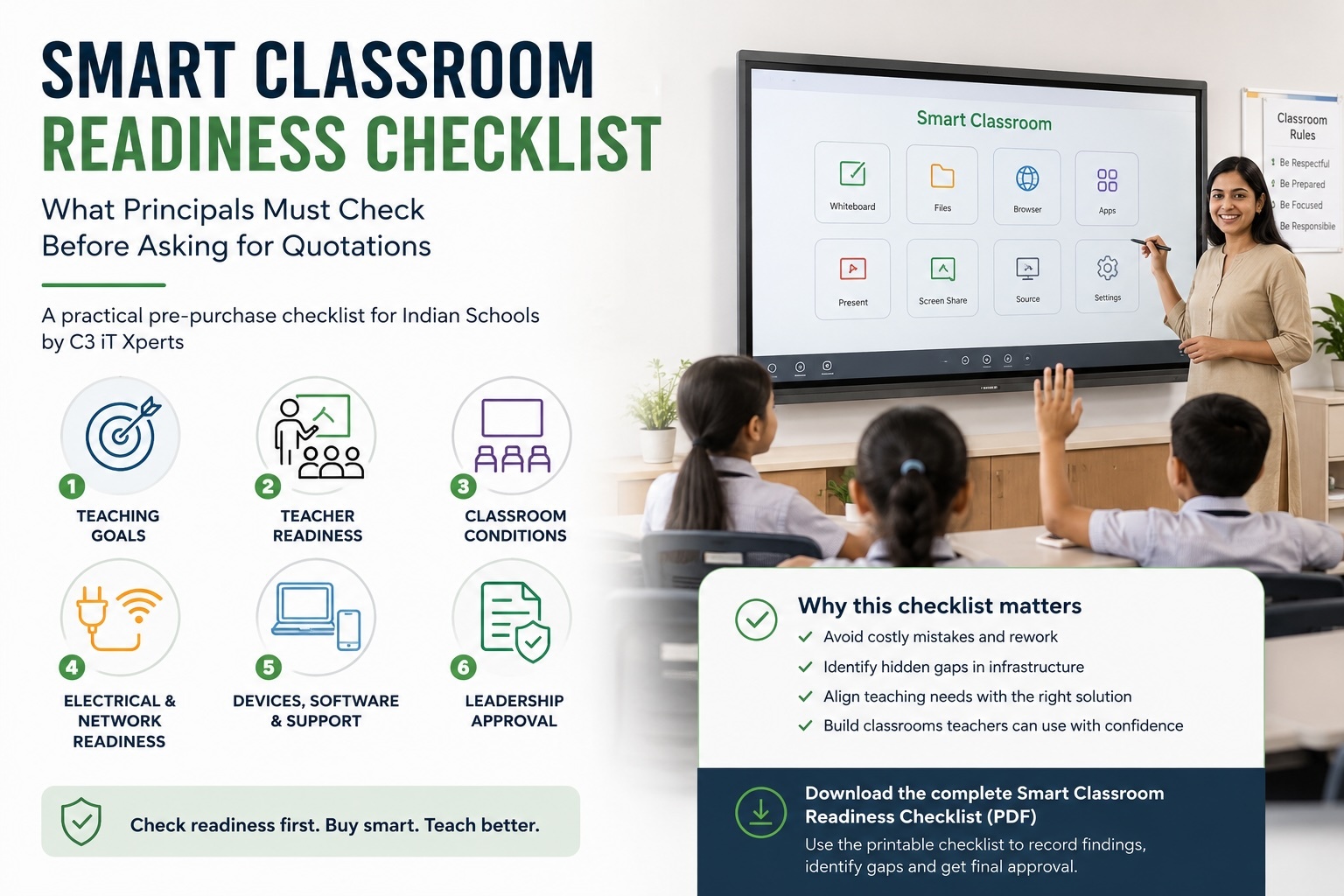
Start With a Readiness Audit
Before asking for quotations, check five areas:
- Teachers: Have different teacher groups been consulted and real lessons observed?
- Network: Does Wi-Fi work in every classroom during normal use?
- Cloud: Does the school own its lesson files and control access?
- Classroom: Is the screen visible from the last row? Are power, sound, mounting, and cables ready?
- IT: Can the team manage devices, updates, security, and support centrally?
A readiness audit prevents the school from buying a solution that the building, network, or teachers cannot support.
Ask for the Workflow, Not the Product Demo
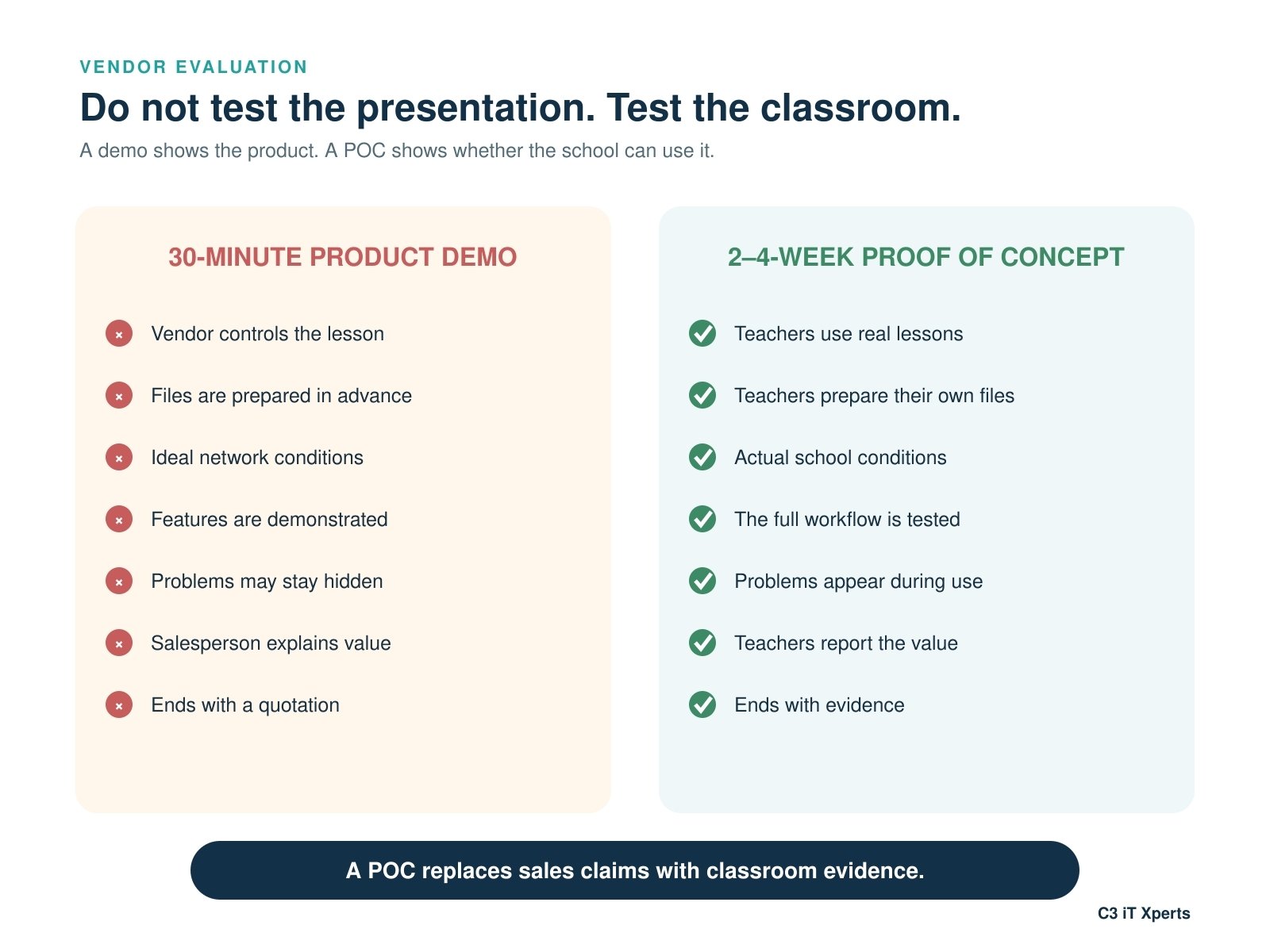
A product demo takes place in ideal conditions.
The vendor chooses the file. The network works. The presenter knows every click.
That does not show what will happen on a normal school day.
Instead of asking, “What can your panel do?
ask:
This is how our teachers work. Show us how your system will support it.
Give the vendor a real task:
- Prepare a lesson.
- Save it to the school cloud.
- Open it in the classroom.
- Add notes.
- Let students respond.
- Run an assessment.
- Save the work.
- Show the result.
The vendor should demonstrate the complete teaching flow-not only the whiteboard, ports, or AI features.
Run a Two-to-Four-Week Proof of Concept
Do not select a school-wide system from one demonstration.
Run a real classroom trial.
Include different teachers
Test with:
- Teachers who are confident
- Teachers who need support
- Teachers who are hesitant
Do not test only with technology champions.
Test real work
Use real lesson files, different subjects, student activities, saving, sharing, and assessment.
Ask teachers:
- How long did preparation take?
- How quickly did class begin?
- What caused friction?
- Would you use the system every day?
- What support is still needed?
At the end, collect written feedback.
A school can then compare classroom value with total cost.
The salesperson should not decide the project.
The lowest quotation should not decide it either.
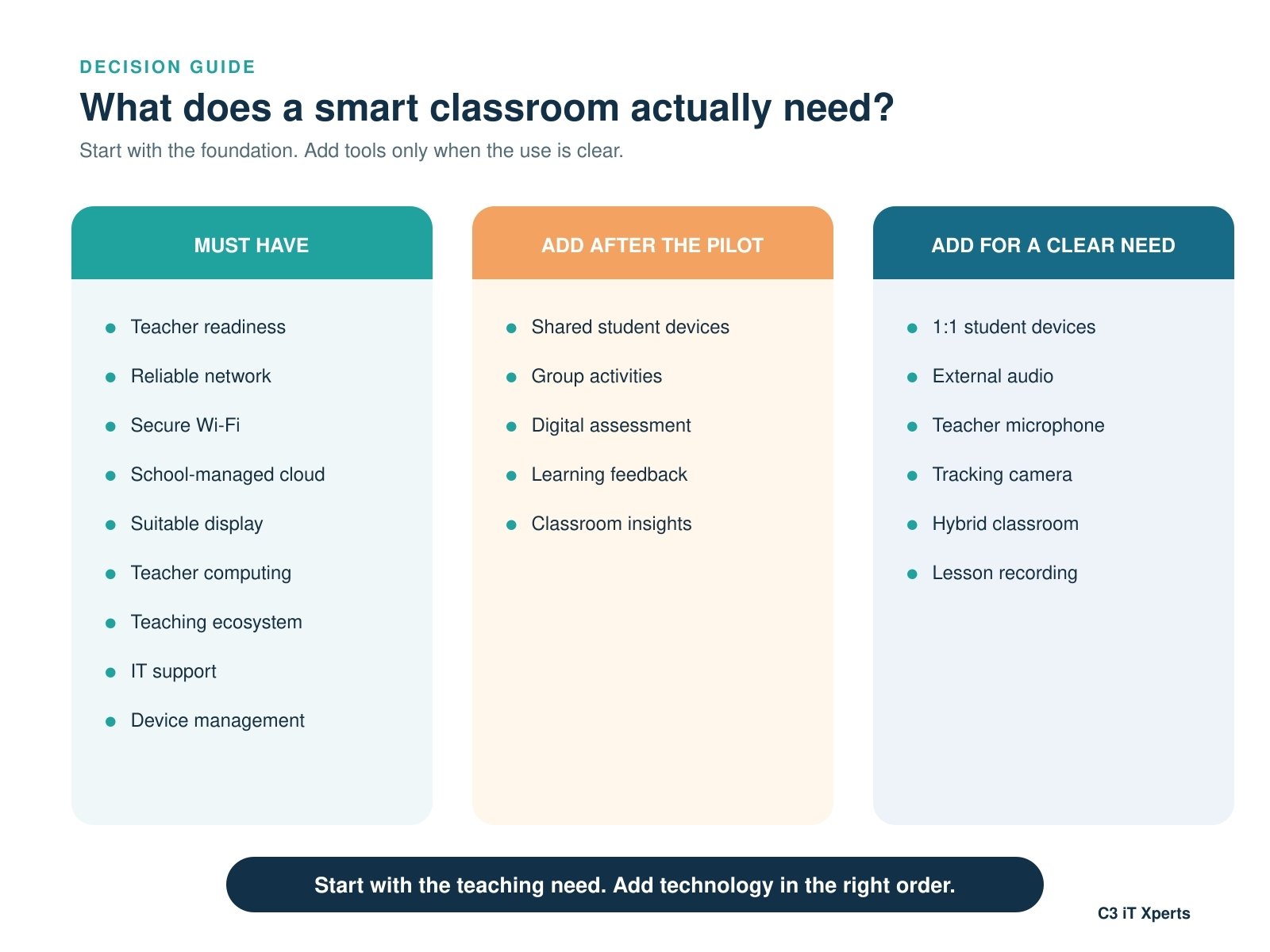
Roll Out in Four Phases
1: Audit and pilot
Check teacher readiness, network, cloud, IT support, and one pilot classroom.
2: Expand teacher use
Add more displays, teacher devices, software, training, and central management.
Measure teacher confidence, lesson flow, saved resources, and support tickets.
3: Add student participation
Introduce shared devices, group activities, digital assessment, and feedback.
Measure student participation and teacher response to learning evidence.
4: Build connected learning
Consider one-to-one devices, hybrid tools, lesson recording, and deeper analytics only after the earlier phases are stable.
Move to the next phase only when the people and system are ready.
Red Flags in a Smart Classroom Proposal
Be careful when a supplier:
- Talks only about price
- Focuses only on hardware
- Cannot explain the software workflow
- Has no teacher training plan
- Avoids a classroom trial
- Cannot explain support response times
- Hides optional costs
- Promises that one feature will transform learning
A panel does not transform learning by itself.
Implementation does.
What School Owners and Principals Should Measure
Do not measure only the number of panels installed.
Measure:
- Teacher adoption
- Lesson preparation time
- Time taken to start class
- Student participation
- Assessment use
- Saved and reused lessons
- Technical interruptions
- Support response time
- Teacher confidence
Ask during a walkthrough:
- Is the teacher relaxed?
- Are students answering or creating?
- Is technology helping the flow?
- What happens when the internet fails?
A panel can be switched on for six hours and still be used only as a screen.
Look for learning flow.
How C3 IT Xperts Can Help
C3 IT Xperts helps schools audit, plan, test, and implement smart classroom technology. Support can include teacher-readiness reviews, room and network audits, display recommendations, workflow testing, teacher training, quotation review, and phased rollout planning.
Planning a smart classroom? Request a classroom technology consultation before approving a proposal.
Internal Reading for School Leaders
Use these guides to plan the next step:
- Smart Classroom Planning Guide for Indian Schools
- Smart Classroom vs Digital Classroom
- The 5-Minute Tech Audit for Principals
Frequently Asked Questions
What technology does a smart classroom need?
A smart classroom needs a learning goal, trained teachers, reliable internet, secure Wi-Fi, a managed cloud, a suitable display, teacher computing, assessment tools, student participation, IT management, and support.
Is an interactive flat panel enough?
No. A panel becomes part of a smart classroom when it supports planning, teaching, participation, assessment, feedback, and improvement.
Does every classroom need an OPS?
No. An OPS is useful for desktop or Windows applications. A teacher laptop or Chromebook may be better for some schools.
How long should a pilot run?
At least two weeks is useful. Four weeks gives teachers more time to test different subjects, workflows, and support.
What should a school buy first?
Start with a readiness audit. The first investment may need to be network, cloud, training, or support-not another display.
How can schools avoid waste?
Define the goal, test the complete workflow, compare the full cost, run a proof of concept, and expand in phases.
About the Author

Manoj Sundaram
Founder @ C3 iT Xperts
I help K–12 leaders turn "dusty" classroom tech into a daily teaching habit. 18 years and 11,000 classrooms have taught me that the best tech is the tech that "disappears" into the teaching rhythm.
18+
Years Experience
11k+
Classrooms
50k+
Educators Impacted
- Smart Classroom Adoption,
- Teacher Technology Adoption,
- Indian School Leadership,
- Interactive Flat Panel India,
- Smart Classroom India,
- Classroom Technology ROI,
- K-12 Education Technology,
- Smart Classroom Planning
.jpg)